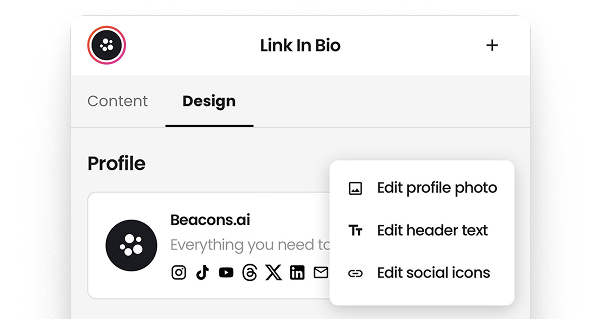
here's exactly how to edit your header and social icons ͏ ͏ ͏ ͏ ͏ ͏ ͏ ͏ ͏ ͏ ͏ ͏ ͏ ͏ ͏ ͏ ͏ ͏ ͏ ͏ ͏ ͏ ͏ ͏ ͏ ͏ ͏ ͏ ͏ ͏ ͏ ͏ ͏ ͏ ͏ ͏ ͏ ͏ ͏ ͏ ͏ ͏ ͏ ͏ ͏ ͏ ͏ ͏ ͏ ͏ ͏ ͏ ͏ ͏ ͏ ͏ ͏ ͏ ͏ ͏ ͏ ͏ ͏ ͏ ͏ ͏ ͏ ͏ ͏ ͏ ͏ ͏ ͏ ͏ ͏ ͏ ͏ ͏ ͏ ͏ ͏ ͏ ͏ ͏ ͏
Updating your profile just got way easier. Instead of digging through settings or scrolling around your design page, everything is now neatly tucked into one clean popup.
We’ve heard from a lot of you that you simply have no idea how to edit your header text or social icons anymore (sad). But it’s super simple once you know where to look!
Just head to Link in Bio Design > Profile > Edit Profile, and you’ll find all your essentials — your name, bio, profile photo, and social links — right at the top in one tidy, centralized spot. |
|
|
- Easily navigate to the exact part of your header you want to update
-
Toggle between a text or logo style
- Include tons of social icons or just a few; it's up to you!
|
|
|
It’s the fastest, most intuitive way to polish your profile visuals and make sure your page is looking ✨ just right ✨. |
|
|
Beacons® is a registered trademark of Beacons AI Inc. ©2025
2261 Market Street #4319 San Francisco, CA 94114 |
|
|
|